Configure connections to OpenTelemetry-compatible platforms
The Grepr OpenTelemetry integration enables you to ingest telemetry data into Grepr from a collector that supports the OpenTelemetry Protocol over HTTP, or OTLP/HTTP, process the data with a Grepr pipeline, and then send the processed data to any observability vendor that accepts OTLP/HTTP requests. The OpenTelemetry integration supports logs and Application Performance Monitoring (APM) data, including traces and metrics.
To send logs or APM data to a Grepr pipeline for processing, change your collector configuration to send them to a Grepr endpoint URL instead of your vendor’s OTLP/HTTP endpoint. The Grepr OpenTelemetry integration works with any collector that supports OTLP/HTTP, including the OpenTelemetry Collector and Fluent Bit.
The Grepr endpoint URL requires a Grepr-generated token for authentication. When you create an OpenTelemetry integration, Grepr automatically generates this token. In the UI, the token is displayed in a dialog after you create the integration. You must copy this token and include it in your collector configuration. When you use the REST API to create the integration, the token is returned in the response.
You can use the Grepr UI or REST API to add an OpenTelemetry integration. To learn how to create an OpenTelemetry integration in the Grepr UI and configure collectors to send data to Grepr, see Use an OpenTelemetry integration in a Grepr pipeline. To learn how to configure OpenTelemetry-compatible vendor integrations, see Use an OTLP/HTTP compatible vendor integration in a Grepr pipeline.
To use the REST API, see the OpenTelemetry Integration specification.
Although this page describes using an integration to create a pipeline for sourcing and sending data with a single observability platform, your pipelines can use multiple integrations to source and sink data for different platforms. For example, you can create a pipeline with a Datadog integration that’s used to source data from Datadog agents, and a Splunk integration and sink that sends the pipeline output to Splunk.
Requirements
Creating and configuring an OpenTelemetry integration requires the URL of the HTTP/HTTPS endpoint where your observability vendor accepts OpenTelemetry data.
Use an OpenTelemetry integration in a Grepr pipeline
Use the following steps to create an OpenTelemetry integration in the Grepr UI and use the integration as a source and sink in a pipeline.
Step 1: Create an OpenTelemetry integration
To create an OpenTelemetry integration in the Grepr UI:
-
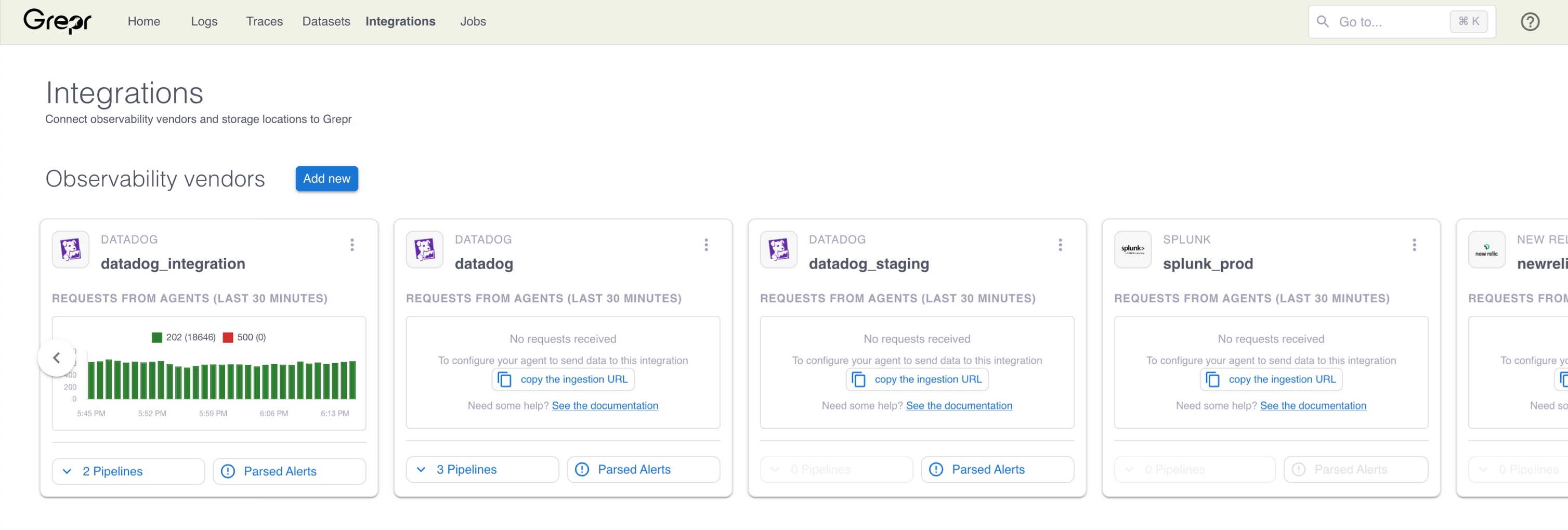
Go to the Integrations page in the Grepr UI and click Add new next to Observability Vendors.
-
In the Add Observability Vendor dialog:
- In the Type menu, select Open Telemetry.
- In the Name field, enter a name for the integration.
- In the Endpoint field, enter the URL for the HTTP/HTTPS endpoint.
- Optional: To add any required headers, for example, authentication headers such as
Authorization: Bearer <token>orX-API-Key: <api-key>:- In the HTTP Headers section, click Add Header to open the Add New Header card.
- To use a fixed value for the header, in the Source menu, select Static Value and enter the Header Name and Header Value.
- To set the header value using an attribute from processed log events, in the Source menu, select From Attribute, enter the Header Name and Attribute Path.
- To store the value securely and mask it in the UI, click the lock icon. Use this option for all sensitive values, such as API keys or tokens.
- Click Save.
-
Click Create.
-
After clicking Create, the Grepr Token dialog appears with a Grepr-generated token. Click the Copy to Clipboard icon to copy the token. This token is required when you configure your collector to send data to Grepr.
-
Click Confirm to close the dialog.
Optional: Grant team access to the integration
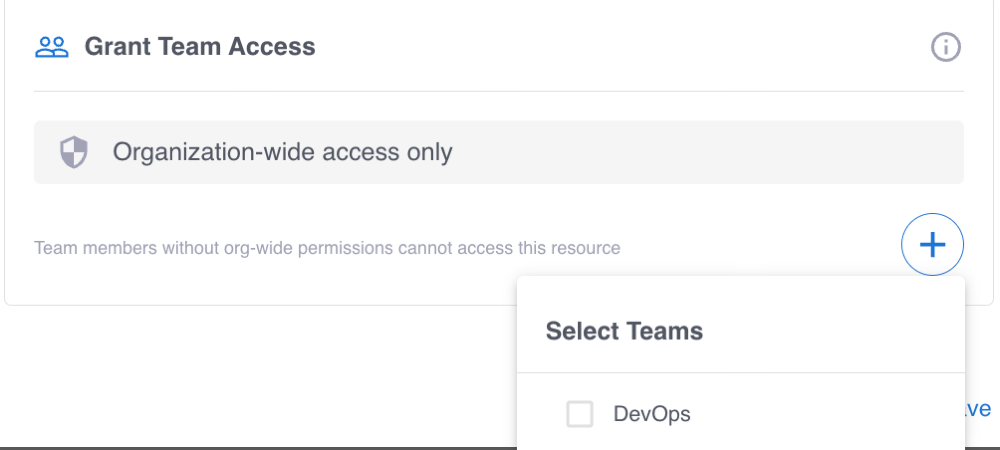
When you have teams in your Grepr organization, you can grant access to the integration to one or more of those teams. To configure team access when you create or edit an integration:
-
In the Grant Team Access section, click the plus sign icon (+).
-
Select the team or teams that should be granted access to the integration.
-
Click Create.
To learn more, see Manage teams in the Grepr platform and Permissions in the Grepr platform.
-
When you select From Attribute to set a header value, Grepr groups log events that share the same attribute value into the same outbound request, sets the header to that value, and forwards the events to your vendor’s endpoint. Events with different values for the attribute are sent in separate requests with the corresponding header values. Use this option when downstream routing or tenancy depends on a per-log value, such as a Kubernetes namespace or a tenant identifier.
If a log event does not have the configured attribute, or the attribute value fails Grepr’s validation, for example, because it contains control characters or exceeds the maximum length, Grepr delivers the event but omits the header from the request.
You can add both static and attribute-sourced headers to the same integration. Grepr merges them on each outbound request.
Step 2: Add a source to your pipeline
To add a source to your pipeline that uses the OpenTelemetry integration, select the integration when you create a pipeline. For an existing pipeline, go to the pipeline details page and in the left-hand navigation menu, click Sources and select the integration.
Step 3: Configure forwarding to Grepr
To send data to Grepr, you configure your collector or agent to send it to the ingestion URL for your Grepr integration, rather than to your observability vendor’s platform. To find the ingestion URL when using the Grepr UI to configure your pipeline, go to the details page for the pipeline, click Sources in the left pane, and copy the Ingest URL.

If you connect to Grepr through AWS PrivateLink, copy the private ingestion URL and use it in place of the public ingestion URL. To learn more about sending data to Grepr over AWS PrivateLink, see Securely forward observability data to Grepr with AWS PrivateLink.
When you use the API, you can construct the ingestion URL using the following format:
https://<integration-id>-<org-id>.ingest.grepr.ai/otlp/<grepr-token>
Replace <integration-id> with the identifier of the vendor integration used by your pipeline and replace <org-id> with the identifier for your organization.
To use the PrivateLink endpoint service, insert .private after the ingest host segment.
Although all sources created from the same integration share the same ingestion URL, you can use a single integration to create sources for multiple pipelines. The Grepr platform ensures events are routed to the correct pipelines.
Replace <grepr-token> with the token generated when you created the OpenTelemetry integration in Step 1.
To see configuration examples for sending data to Grepr, select the tab for your preferred collector:
OpenTelemetry Collector (logs)
The OpenTelemetry Collector can send logs to Grepr using the otlphttp exporter. In the OpenTelemetry collector configuration, set the endpoint to the ingestion URL from your OpenTelemetry integration:
exporters:
  otlphttp:
    endpoint: <ingestion-url>

service:
  pipelines:
    logs:
      receivers: [otlp]
      processors: [batch]
      exporters: [otlphttp]
Replace <ingestion-url> with the ingestion URL from your OpenTelemetry integration.
For dual shipping, you need to create two exporters: one to send logs to Grepr, and another to send logs directly to your vendor’s platform. Your exporter for Grepr only includes Grepr’s ingestion endpoint, with any needed headers configured in the Grepr UI. Your exporter for the vendor’s platform includes the vendor’s endpoint and the necessary headers.
exporters:
  otlphttp/grepr:
    endpoint: <ingestion-url>

  otlphttp/vendor:
    endpoint: <vendor-otlp-endpoint>
    headers:
      authorization: "Bearer <vendor-token>"

service:
  pipelines:
    logs:
      receivers: [otlp]
      processors: [batch]
      exporters: [otlphttp/grepr, otlphttp/vendor]
Replace:
<ingestion-url>with the ingestion URL from your OpenTelemetry integration.<vendor-otlp-endpoint>with your vendor’s OTLP/HTTP endpoint URL.<vendor-token>with your vendor’s authentication token.
To learn more about configuration settings for the OpenTelemetry Collector, see the OTLP/HTTP Exporter documentation .
Use an OTLP/HTTP compatible vendor integration in a Grepr pipeline
The following tabs show the integration configurations required to connect Grepr to an observability vendor’s OTLP/HTTP endpoint. To connect to a vendor not listed here:
- In your vendor’s documentation, find their OTLP/HTTP endpoint URL and any required authentication headers.
- Create an OpenTelemetry integration in Grepr using your vendor’s endpoint URL and headers. For instructions, see Step 1: Create an OpenTelemetry integration.
- Configure your collector to send data to Grepr. For instructions, see Step 3: Configure forwarding to Grepr.
Datadog
To send OpenTelemetry data to Datadog from Grepr, configure your integration to use the Datadog OTLP endpoint and required headers.
Integration Configuration:
- Endpoint URL:
https://http-intake.logs.datadoghq.com/api/v2/logs - Headers:
dd-protocol:otlp
- Secret Headers:
dd-api-key:<dd-api-key>
Replace <dd-api-key> with your Datadog API key.
For more information, see Datadog OTLP Logs Intake Endpoint . To use Grepr’s native Datadog integration instead of OpenTelemetry, see Configure Datadog connections with a Grepr integration.
Security considerations
Grepr validates all headers you configure on an OpenTelemetry integration for potential security issues, including CRLF injection, control characters, and other attacks. Otherwise, when configuring OpenTelemetry integrations:
- Always use secret headers for sensitive information like API keys, tokens, or passwords.
- Ensure endpoint URLs use HTTPS for secure data transmission.
- Avoid using reserved headers. Some HTTP headers are reserved and cannot be set for security reasons.