Control what an AI agent can do
An agent’s reach is bounded in layers, and a capability has to be allowed by every layer to work:
- The service account the agent acts as. Its roles are the outer boundary and cap everything the agent can reach in Grepr.
- The tools and skills you enable. These narrow the agent to specific operations within what the service account permits.
- The MCP integrations you enable, and the tools you allow on each. These decide what the agent can reach in other systems.
A fourth setting, the change approval mode, decides whether the agent can make automatic changes to your pipeline.
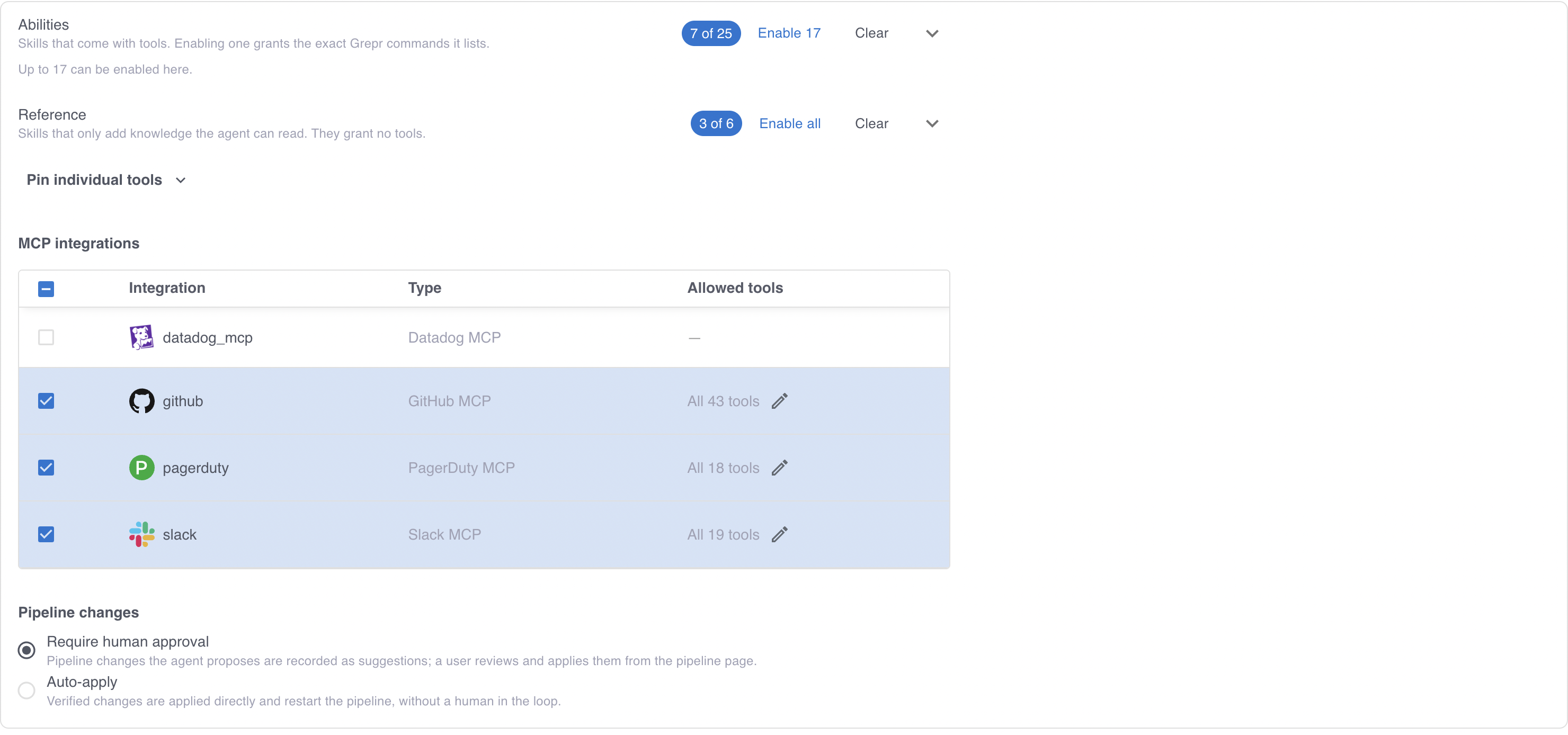
These settings are on the agent’s Capabilities step, and on the matching step of the create wizard.
Choose the service account an agent acts as
Every call an agent makes to Grepr authenticates as the service account you select in the Service account field. The service account’s roles decide which pipelines, datasets, and integrations the agent can read and write to.
The service account is the boundary that holds even if a tool grant is over-permissive. An agent with the pipeline editing tool but a service account that can only view jobs cannot change a pipeline. Grant the narrowest role that lets the agent finish its job. To create one, see Manage Grepr service accounts.
If the Service account menu is empty, create a service account before you continue.
What every agent can already do
Each investigation runs in its own sandbox, and inside that sandbox an agent can:
- Run shell commands.
- Run Python for local analysis and scripting.
- Query files it downloaded with DuckDB.
- Read, create, and edit files in its own workspace.
These are part of the sandbox and cannot be turned off. They act only on the sandbox, which is discarded when the investigation ends, so they do not reach your data or your pipelines. Everything that does reach Grepr is granted separately, as described next.
Grant access to Grepr with tools and skills
The Grepr access section is where you decide what the agent can do. You grant access in two ways, and most agents use both:
- Enable a skill, which gives the agent guidance for a task and, when the skill needs them, the tools that task requires.
- Pin an individual tool, which grants that tool with no accompanying guidance.
Prefer skills. A skill tells the agent how to use what it grants, so an agent with a skill usually needs fewer turns than one holding the bare tool. Pin a tool when you want a capability that no skill attached covers.
Abilities and reference skills
Skills are grouped by whether enabling one is a permission decision:
- Abilities carry tools. Enabling one grants the agent the operations that skill needs, so treat it as granting access.
- Reference skills carry only knowledge. Enabling one changes what the agent knows, never what it can do, so it is safe to enable freely.
To read what a skill covers and what it grants before you enable it, open its detail from the selector. To learn what skills exist and how to write your own, see Extend agents with skills.
How much a skill grants
How wide a skill’s grant is depends on its scope, and the difference matters when you are reasoning about least privilege:
- A platform skill, which Grepr maintains, grants exactly the operations its definition lists. A skill that needs only to preview a pipeline change gets the preview operation and not the one that applies it.
- An organization skill, which you create, grants the whole tool family behind each tool you approve on it, meaning every operation that tool covers rather than only the ones the skill uses. Approving the pipeline editing tool on your own skill grants everything that tool covers, not only the part your instructions use.
So an organization skill is as broad as the tools you approve on it. To keep a grant narrow, approve fewer tools on the skill rather than relying on the skill’s instructions to limit the agent.
Enabling a tool directly always grants its whole family, the same way an organization skill does.
Tool reference
| Tool | What it lets the agent do |
|---|---|
query_logs | Query the logs in your Grepr datasets. |
get_pipeline | Read the configuration of your pipelines and templates. |
edit_pipeline | Propose a change to a pipeline’s configuration, and preview a change before proposing it. |
grok | Build and test Grok parsers. |
datasets | List, read, and manage your Grepr datasets. |
integrations | List and read your Grepr integrations. |
docs | Search the Grepr documentation and validate SQL. |
backfill | Replay logs from the data lake to a vendor destination. |
investigations | Read agent configuration, past investigations, and their transcripts. |
github_code | Clone, edit, and publish source repositories. Requires an enabled GitHub MCP integration. |
An agent’s pipeline changes are scoped to a pipeline’s Grok parsers and its SQL transforms, so granting the pipeline editing tool keeps the rest of the pipeline configuration out of the agent’s reach. Both are add-only. An agent can add a Grok rule or add a SQL transform, and it cannot change or remove one that is already there, so its proposals accumulate alongside your configuration rather than rewriting it.
A SQL transform an agent adds is a filter and nothing further. It reads the pipeline’s logs and selects them unchanged against a single condition, so it cannot join, aggregate, read a dataset, register a function, or keep state. It routes the events it matches to the agent signal sink, which you configure yourself when you set the pipeline up. An agent can add routes to that sink, and it cannot create, change, or remove the sink. That limit is on what an agent adds by itself. A SQL output you route to the agent signal sink yourself carries no such restriction, so you can build the event an agent receives however you need. See Send specific events with an agent signal sink.
The tools and skills you grant also decide which grepr CLI commands the agent can run.
The tools an agent uses with memories and issues are not in this list. Every agent can search and read both. The Remember past investigations switch, on the agent’s Memories step, and the Works on issues switch, on its Issues step, decide whether it also records memories and changes issues. When you create an agent, both are in the wizard’s Memory and issues section. See Remember past investigations and Work on issues with AI agents.
Let an agent call an MCP server’s tools
The MCP integrations section lists the MCP integrations in your organization and which of their tools the agent can use. Two agents can share one integration with different tool access enabled.
Edit the integration’s allowed tools and choose either every tool the server publishes or only the ones you select. Grepr reads the tool list from the server and marks each tool as read only or writing; for example, you can allow an agent to read incidents without allowing it to change them.
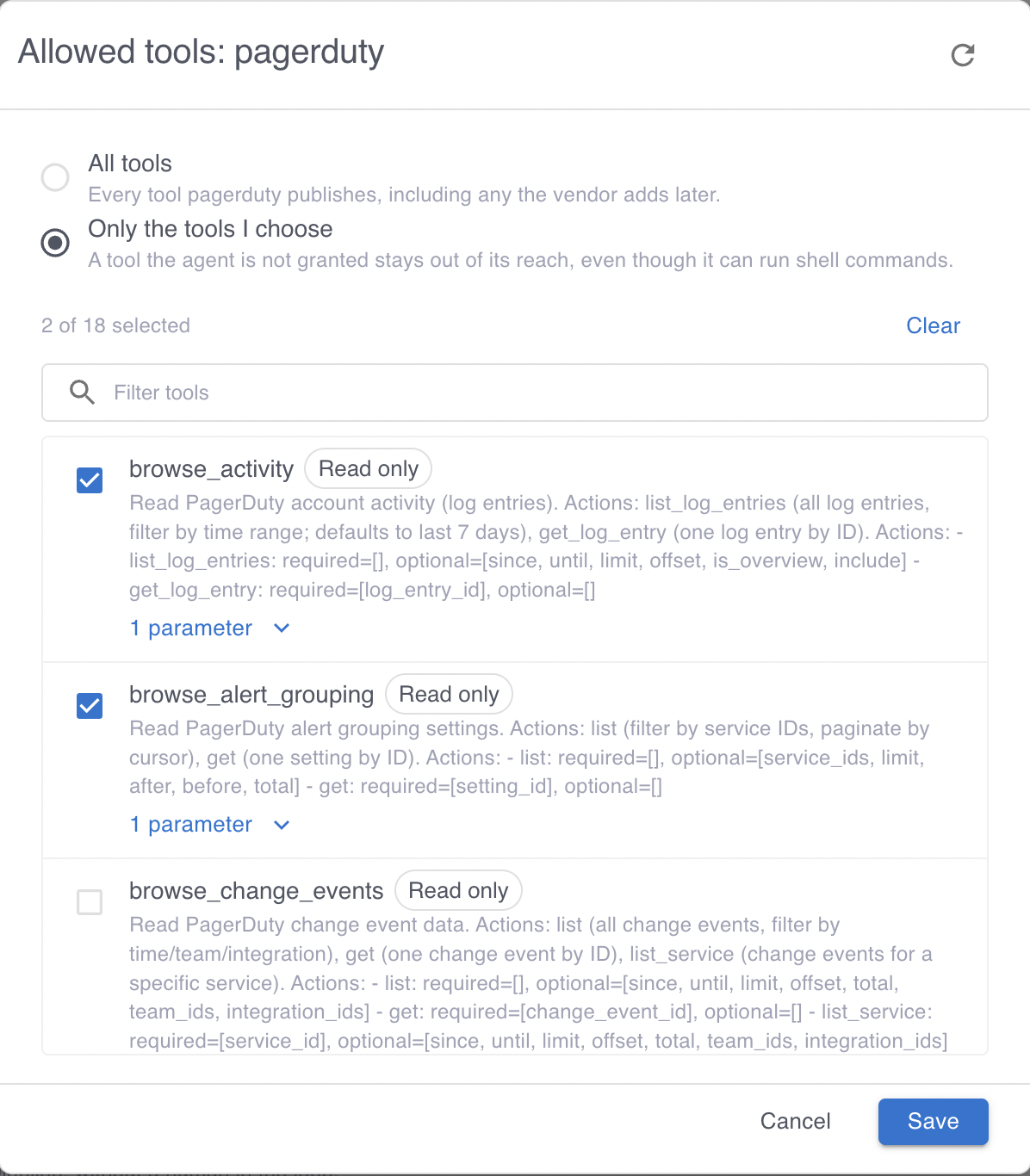
Allowing every tool means the agent gains any tool the server adds later, which is convenient for a read-only server and worth avoiding for one that can make changes. Selecting individual tools keeps the enabled tools fixed until it is manually changed.
Two rules apply to GitHub:
- An agent can enable at most one GitHub MCP integration.
- The
github_codetool needs an enabled GitHub MCP integration, because that integration is how it reaches source code.
To create an integration, see Configure MCP server connections with a Grepr integration.
Decide whether pipeline changes need approval
An agent that decides a pipeline needs a configuration update does not edit it directly. It submits the change, and the Pipeline changes setting decides what happens next:
| Mode | What happens when the agent proposes a change |
|---|---|
| Require human approval | Grepr records the change as a suggestion on the pipeline. Nothing changes until you review and apply it. |
| Auto-apply | Grepr verifies the change and applies it. A running pipeline restarts to pick it up. No person is involved. |
Require human approval is the default, and it is the right setting while you are learning how an agent behaves. Auto-apply an agent’s changes only after its suggestions have consistently been ones you would have made yourself.
Grepr enforces the mode at the operation level, so while an agent can always preview pipeline changes, it cannot bypass Require human approval to apply them.
A change that lands on a running pipeline restarts it, which interrupts processing briefly.
To review suggestions, see Review the pipeline changes an agent proposes.