Subscribe an agent to signal sources
A signal is an event that starts an investigation. A subscription connects an agent to a source of signals, so that source’s events are investigated automatically rather than only when you start an investigation manually.
A subscription carries no filters or conditions of its own. What an agent investigates is decided by what the source emits, so you narrow an agent’s work by changing the source rather than the subscription.
Signal sources
Signals reach an agent in four ways:
| Signal | Where it comes from | How the agent is chosen |
|---|---|---|
| Log pattern | A pipeline reducer detected a log pattern it has not seen before. | By subscription. |
| Pipeline signal | A SQL output in a pipeline is routed to the agent signal and matched an event. | Named in the pipeline’s agent signal sink. |
| Webhook | A Grepr Agent integration received an event. | By subscription. |
| Manual | You started the investigation. | You chose the agent. |
The log pattern and webhook signals use subscriptions, which you manage on the agent’s Subscriptions step. The pipeline signal names its agents in the pipeline itself instead, and is described in Send specific events with an agent signal sink.
Subscribe an agent to a pipeline
A pipeline can tell your agents when its reducer detects a log pattern it has not seen before, which is how an agent learns about behavior that is new in your systems rather than behavior you already knew to alert on.
Step 1: Turn on new-pattern signal emission
A pipeline emits nothing to agents until you turn it on, and Grepr refuses a subscription to a pipeline that has it off. Turning it on changes the pipeline’s configuration, so Grepr redeploys the pipeline before signals start flowing. Subscribing and unsubscribing afterwards take effect without a restart. A pipeline needs a log reducer or a pattern matcher to emit these signals at all.
To turn it on, go to the pipeline’s reducer configuration, open the advanced settings, and select Emit new-pattern signals to AI agents.
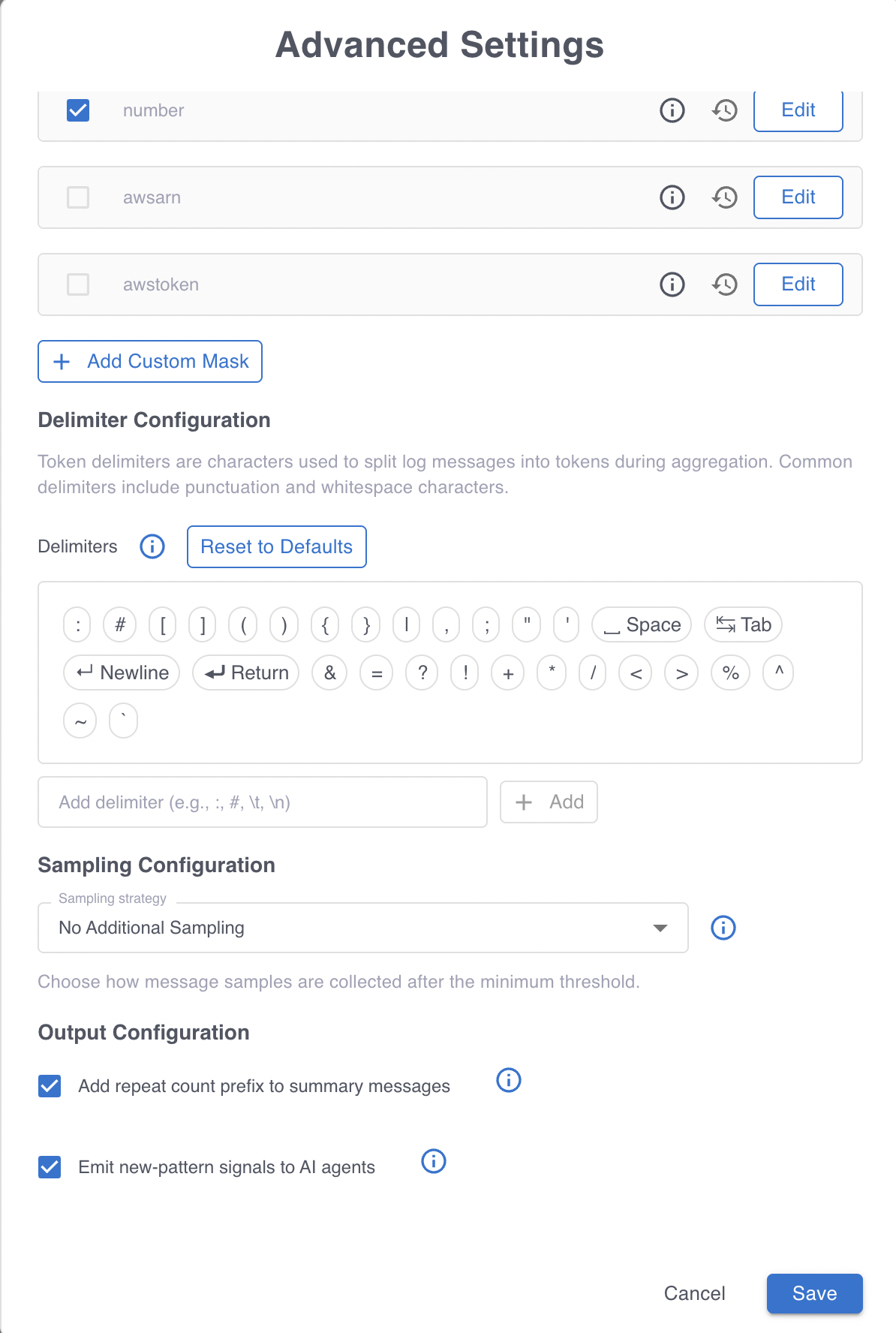
To learn more about the reducer, see Configure the log reducer in a Grepr pipeline.
Step 2: Subscribe the agent
- On the agent’s page, go to the Subscriptions step.
- In the Subscribe to a signal source menu, select the pipeline under Pipelines.
- Click Subscribe.
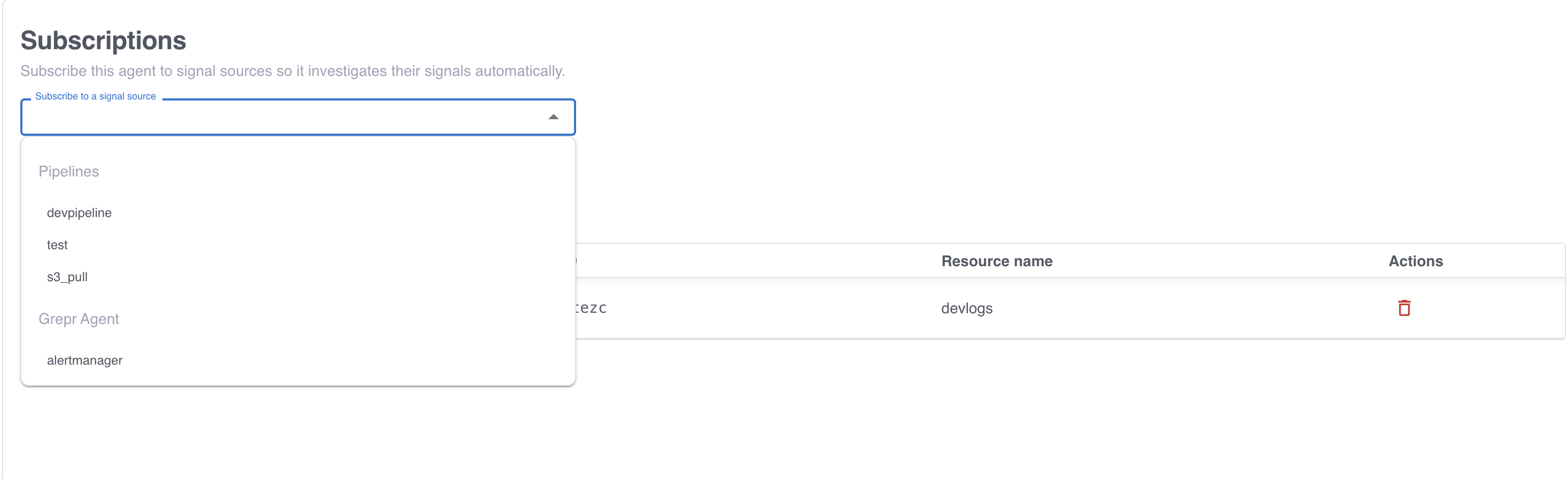
Subscriptions apply as soon as you make them and are not held by the agent’s save bar. A running pipeline picks up a new subscriber without restarting, so you can subscribe an agent to a live pipeline at any time.
When a pattern produces a signal
A pattern signals an agent only if the agent subscribed after that pattern last emitted a signal. This has two consequences worth knowing before you rely on it:
- An agent is notified about each pattern once, for as long as the reducer keeps that pattern in its state. A pattern that keeps occurring does not keep starting investigations, so a pattern that matches a high volume of logs does not flood an agent. A pattern the reducer drops from its state and later meets again counts as new, and signals its subscribers a second time.
- Subscribing gives you no backlog. An agent you subscribe today is never notified about occurrences that already happened. It is notified the next time any pattern matches, including a pattern the pipeline flagged before you subscribed, because that agent is newer than the pattern’s last emission.
So subscribing an agent to an established pipeline can produce a burst of investigations, one for each of its recurring patterns as that pattern next matches, and then settle down to one per newly detected pattern. Expect that burst on a busy pipeline and set the agent’s concurrency limit before you subscribe. See Control how many signals reach an agent.
Send specific events with an agent signal sink
New-pattern signals tell an agent about behavior that is new. When you want an agent to investigate behavior you can describe instead, route a SQL output in the pipeline to the agent signal. Every event that output emits becomes a signal, so you decide exactly what reaches the agent by writing the SQL.
This mechanism does not use subscriptions. The pipeline names the agents directly, so an agent can receive these signals without appearing in its own Subscriptions step.
To configure it:
- In the pipeline, add a SQL transform whose output is routed to the agent signal. The routed output must produce log events.
- In the pipeline’s sinks, edit the agent signal sink and select the agents in the Agents field.
- Optionally enter Context, which is guidance sent with every signal from this pipeline, such as which team owns the service or what an acceptable remediation is. A context can be up to 4,096 characters.
The sink and the route are two halves of one configuration, and Grepr saves the pipeline only when both are present. A pipeline with a routed output needs a sink naming at least one agent, and a sink cannot remain after you remove its last route. When you stop sending signals from a pipeline, remove the route and the sink together.
Because every matching event becomes a signal, a SQL output that matches broadly can produce far more investigations than an agent can run. Write the output to match the events you would want to look at yourself, then check the agent’s queue after the change. See Control how many signals reach an agent.
To learn more about SQL transforms, see Transform events with SQL.
Subscribe an agent to a Grepr Agent integration
A Grepr Agent integration turns events from another system into investigations. Every event it accepts starts an investigation on each subscribed agent, with no pattern detection or deduplication in between.
- On the agent’s page, go to the Subscriptions step.
- In the Subscribe to a signal source menu, select the integration under Grepr Agent.
- Click Subscribe.
Subscribe more than one agent to an integration when you want different agents to examine the same event differently, such as one that diagnoses and one that checks for a security concern. Each subscribed agent gets its own investigation of the event.
To create an integration and send events to it, see Send events to an AI agent with a Grepr Agent integration.
Unsubscribe an agent
On the agent’s Subscriptions step, remove the source from the table and confirm. The agent stops investigating that source’s signals. Investigations already running finish.
Detach an agent from its pipelines and from the Grepr Agent integrations that name it before you delete it, because Grepr refuses to delete an agent either one still targets. A pipeline that names the agent in its agent signal sink is not covered by that check, so clear the agent from the sink’s Agents field yourself. Because a sink keeps at least one agent, name another in its place or remove the sink with the routes that feed it. See Delete an agent.
Control how many signals reach an agent
Because subscriptions carry no filters, the number of investigations an agent runs is set by the sources you subscribe it to and the limits on the agent itself:
- Narrow what the source emits. For a pipeline signal, make the SQL output match fewer events. For a webhook, send fewer events from the system at the other end. This is the only way to reduce signals rather than drop them.
- Cap the agent’s concurrency. Choose how many investigations run at once and whether extra signals queue or are discarded. See Control concurrency and queueing.
- Expire stale queued signals. Set a maximum queue wait so a signal that has waited too long is dropped rather than investigated late.
- Cap the tokens. A per-window token budget on the agent bounds its spend whatever the signal volume. See Limit the agent as a whole.
New-pattern signals need less of this than the other sources, because a pattern notifies an agent once rather than on every occurrence.