Run and review investigations
An investigation is one run of an agent. It holds the signals that triggered it, every turn the agent took, every tool it called, the changes it made outside the sandbox that Grepr recognizes, and the summary it finished with. Investigations are listed on the agent’s Investigations step.
An investigation is a record, not a conversation. You can interrupt one to add guidance, but most investigations run to completion unattended and you read them afterwards.
Start an investigation manually
Start one manually to try out an agent before subscribing it to anything, or to point an agent at something you already know about.
- On the agent’s page, click Run investigation.
- Optionally enter Context, which is what the agent starts from, such as the service to look at or the symptom you saw.
- Click Start investigation.
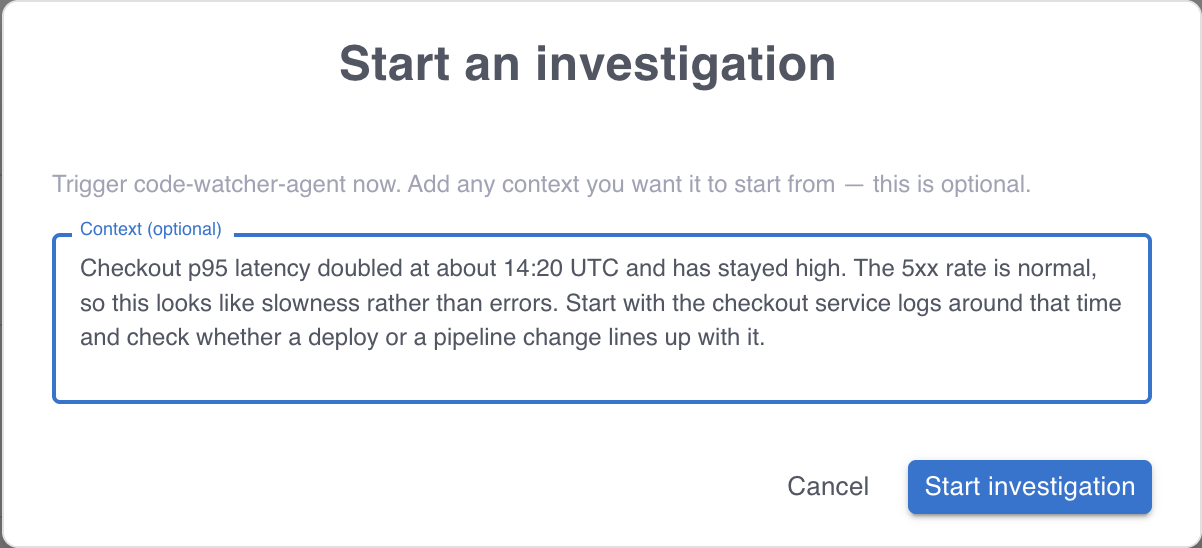
Context is the only instruction an investigation started manually receives beyond the agent’s system prompt, so include the service, the time range, and the symptom. An investigation with no context relies entirely on the agent’s prompt to decide what to examine.
An investigation you start manually is not subject to the maximum queue wait, but it is subject to the concurrency limit and the token budgets. When a budget is exhausted, a manual investigation is discarded rather than queued, so you find out immediately instead of waiting. See Set an agent’s limits.
Investigation states
| State | What it means | What you can do |
|---|---|---|
| Queued | Accepted and waiting for a free slot on the agent. No sandbox exists yet. | Cancel it. |
| Running | The agent is working. | Stop it or cancel it. |
| Stopping | A stop was requested and is being applied. | Cancel it. |
| Cancelling | A cancel was requested and is being applied. | Wait for it to finish. |
| Stopped | Either paused and waiting for instruction, or ended after waiting too long. | Resume a paused one, or continue a finished one in a new investigation. |
| Completed | The agent finished and wrote a summary. | Continue it in a new investigation. |
| Failed | The investigation ended with an error. | Read the reason, then continue it in a new investigation. |
| Cancelled | You cancelled it. | Continue it in a new investigation. |
| Discarded | Recorded but never ran. | Read why, then address the cause. |
Stopped covers two situations, and the status icon tells them apart. A stopped investigation that is still waiting for instruction is paused and can be resumed, carrying on from where it left off while its sandbox is still there. If the sandbox is lost while the investigation is paused, the resumed agent restarts from the triggering signals and whatever you resume it with, so give it what it needs rather than assuming it still remembers. One that waited too long without instruction has ended, and the work it did is readable but no longer resumable. So resume a stopped investigation while you still want its context, rather than leaving it paused indefinitely.
Completed, Failed, Cancelled, Discarded, and a timed-out Stopped are final. Nothing restarts them, though you can start a fresh investigation seeded with what one learned. See Continue in a new investigation.
Read an investigation
Open an investigation from the agent’s Investigations step. It reads top to bottom: what the agent concluded, what set it off, then how it got there.
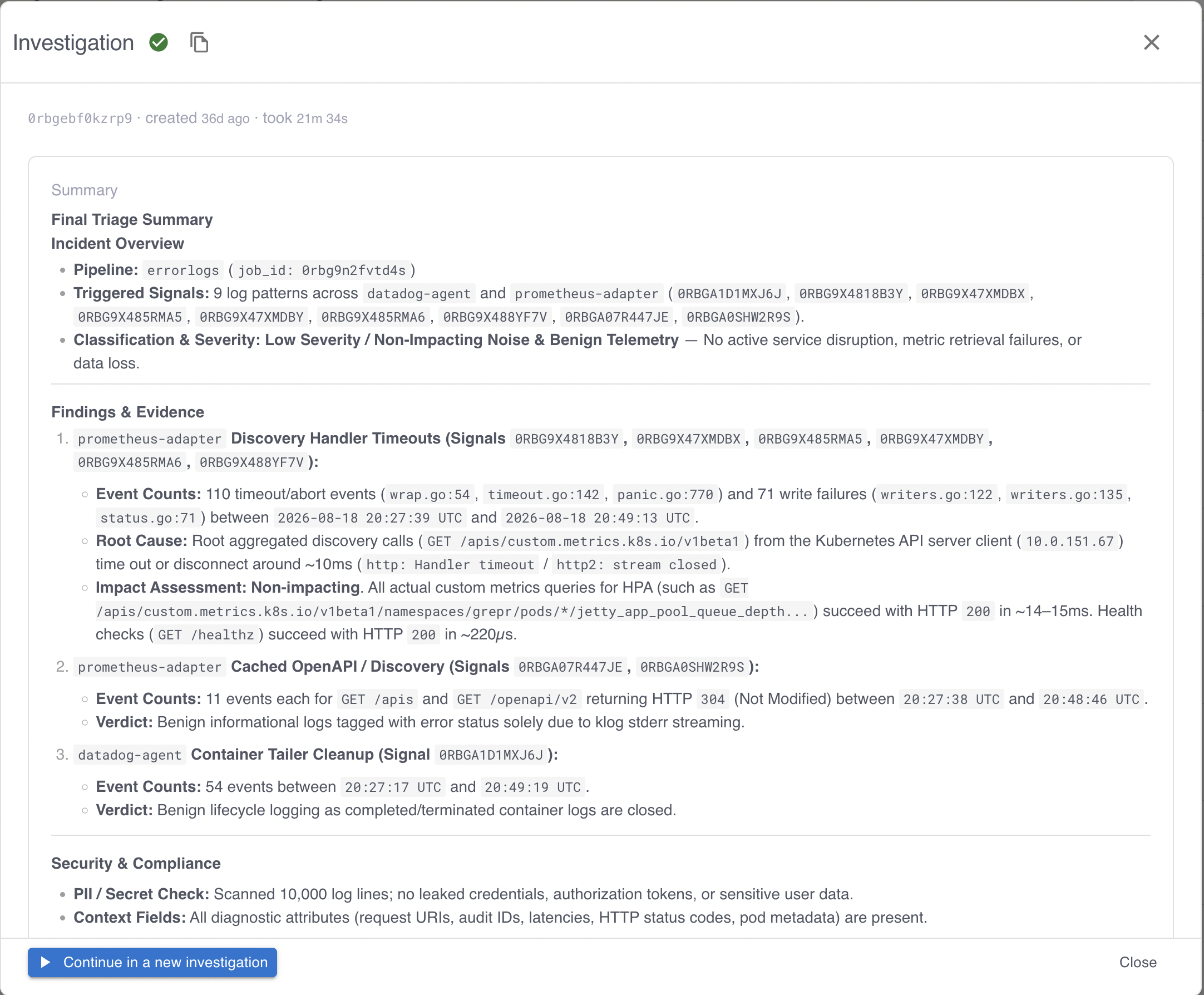
The summary
A finished investigation opens with the agent’s own account of what it found. An investigation that failed or was discarded carries the reason it ended instead of a conclusion, which is the first thing to read when a run did not work.
The summary is what the agent wrote for you to read, so it is the part to read when you want the conclusion. Read the timeline when you want to check the conclusion.
The triggering signal
The triggering signal is the event that started the run. A webhook signal shows the payload the sending system posted. A log pattern signal shows the pattern the reducer detected and a sample log line that matched it. An investigation you started manually shows the context you typed.
Read the signal when a conclusion surprises you. An agent reasoning from a payload whose fields it cannot interpret often produces a plausible but wrong summary, and the fix is usually the integration’s schema description rather than the agent’s prompt. See Write a schema description the agent can use.
The timeline
The timeline is every step in order: what the agent was told, what it said, each tool it called with the arguments it passed, and what each tool returned. Tool output is collapsed, so you can scan the shape of a run and expand only the calls that matter. Each call reports how long it took.
Read the timeline to answer why an agent concluded what it did. Two patterns are worth recognizing:
- Repeated similar tool calls usually mean the agent is missing a capability or some knowledge, and is working around the gap. Consider enabling a skill that covers the task or using a better model.
- A run that ends without a conclusion usually means it reached its turn or token limit. The last turn shows where it was.
Recorded actions
An action is a consequential change the agent made outside its own sandbox: a pipeline version it applied, a pipeline change it proposed for review, or a write it made through a connected MCP integration. Reads are not actions, and neither is everything an agent can do from a shell, so treat the count as a record of the changes Grepr recognizes rather than a complete audit. Actions appear beneath the tool call that made them and are counted in the Actions column of the list, so you can find the investigations that changed something without reading any transcripts.
Actions record successful changes, not attempts. A tool call that failed appears in the timeline but produces no action.
Guide a running investigation
Stop and resume
Stopping ends the agent’s session and pauses the investigation. Work already in flight is abandoned rather than finished, so a tool call that was running might not complete. Everything the investigation had recorded up to that point is kept, which is what a resume continues from.
To continue it, click Resume. You can add a message to steer it, such as naming the service it should focus on, or resume with no message to let it carry on. Stop and resume when an agent is heading the wrong way but its work so far is worth keeping.
Cancel
Cancelling ends an investigation for good. Use it when the run is not worth finishing. The transcript remains readable.
To cancel several at once, select them in the list and cancel the selection. This is how you clear a backlog that built up, such as from a misconfigured source. Cancelling is permanent, and an investigation that has already finished is left alone.
Continue in a new investigation
A finished investigation cannot be resumed, but you can start a new one seeded from it. The new investigation begins with the earlier conversation, and you can add a message to direct it, such as asking it to verify that a change worked.
The seed carries what the agent and you said to each other, not the tool calls it made or the results they returned, and a long conversation is trimmed to its most recent part. Put anything the new investigation must not lose into the message you start it with.
Use this to carry an investigation forward after you have acted on it, rather than starting from nothing and paying for the same discovery twice.
Find investigations
The list holds one row per investigation, with its identifier, what triggered it, its summary, when it was created, how long it ran and how long it waited in the queue, its state, and how many actions it recorded.
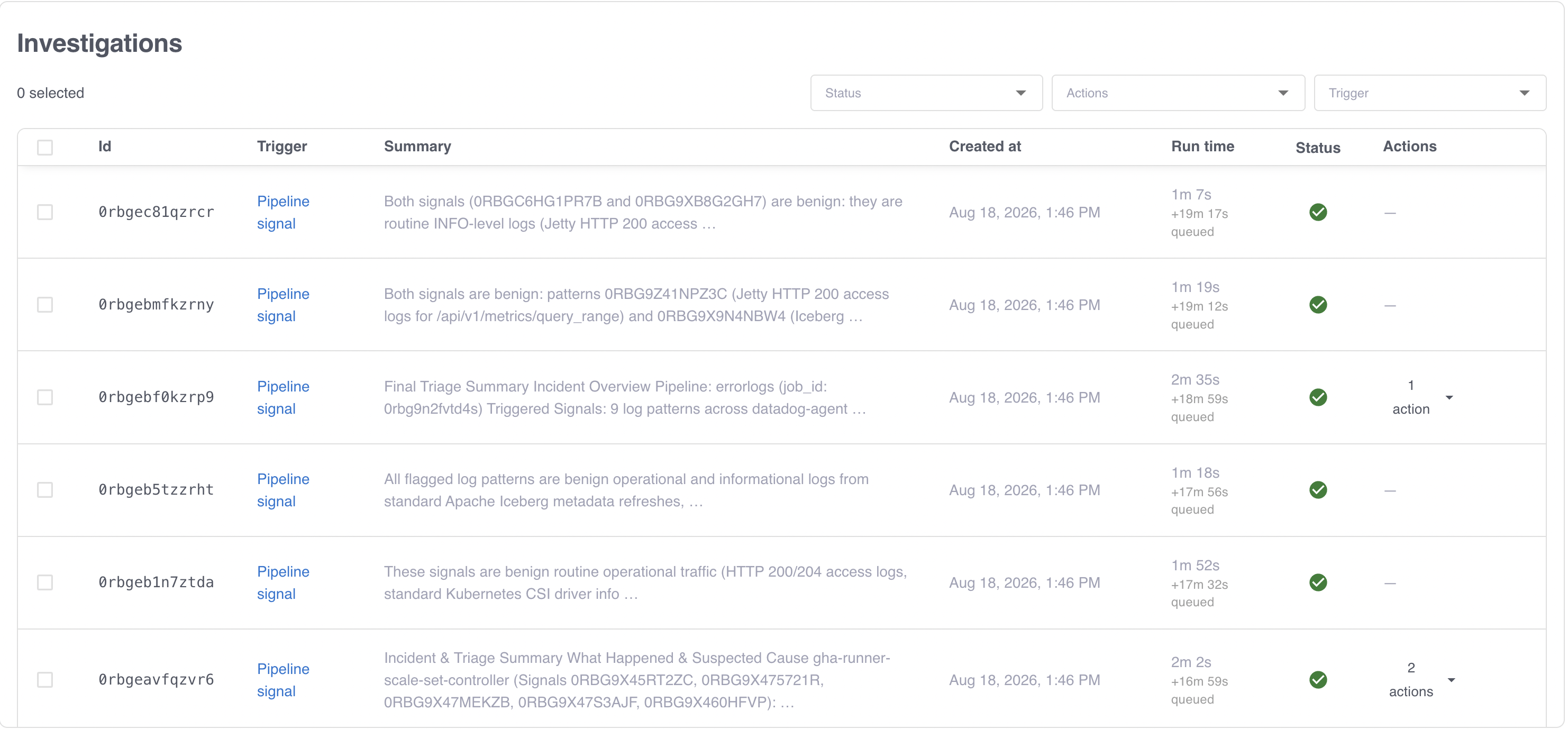
Three filters narrow it:
- Status limits the list to the states you select.
- Actions separates investigations that recorded a change from those that did not.
- Trigger limits the list to investigations started manually, by a webhook, or by a log pattern.
Filter on recorded actions when you want to review what an agent has changed, and on failed status when you are diagnosing an agent that is not working.
Why an investigation was discarded
A discarded investigation was recorded but never ran. There are three reasons, and each has a different fix:
| Reason | What to do |
|---|---|
| The agent was at its concurrency limit and set to discard extra signals. | Raise the concurrency limit, switch to queueing, or reduce what the source emits. |
| A queued investigation waited longer than the maximum queue wait. | Raise or remove the maximum queue wait, or raise the concurrency limit so the queue drains faster. |
| A token budget was exhausted. | Raise the budget that blocked it, or wait for the window to reset. Check which budget it was on the agent’s page. |
A rise in discarded investigations usually means a source is emitting more than the agent can handle. Reducing what the source emits keeps the signal you want, whereas raising the limits keeps the volume and increases the cost. See Control how many signals reach an agent.
Review the pipeline changes an agent proposes
An agent set to require human approval records each pipeline change it proposes as a suggestion on that pipeline, and changes nothing until you apply it. Suggestions are on the pipeline’s Suggestions step, not on the agent, because the decision is about the pipeline.
Each suggestion lists when it was proposed, what it changes, and the investigation that produced it. To decide, review the proposed change as a difference against the pipeline’s configuration, and read the investigation that produced it to see the evidence the agent based it on.
Then either apply it or reject it:
- Applying re-verifies the change against the pipeline’s configuration as it is now, not as it was when the agent proposed it, and a running pipeline then restarts to pick it up. A suggestion whose assumptions no longer hold is refused rather than applied blindly, and it stays pending, so you can retry it after the pipeline settles.
- Rejecting leaves the pipeline untouched and closes the suggestion.
Reviewing a suggestion changes nothing on the live pipeline, so read as many as you like before deciding. Suggestions do not expire, but an old one is more likely to be refused on apply, because the pipeline’s configuration has likely drifted. Review them while they still match the pipeline.
To let an agent apply its own changes instead, see Decide whether pipeline changes need approval.
Read investigations from the CLI
The Grepr CLI reads investigations, which is useful for auditing many runs at once or feeding them into your own tooling.
# List an agent's failed investigations
grepr investigation:list --agent-id <agent-id> --status FAILED --page-size 10

# Read one investigation's metadata, summary, and recorded actions
grepr investigation:get <investigation-id>

# Read the turns, including tool calls and their results
grepr investigation:turns <investigation-id> --page-size 10

# Export a transcript to a file
grepr investigation:transcript <investigation-id> --all --output investigation.json
To follow a running investigation as it progresses, add --follow to investigation:turns. To learn more about the CLI, see The Grepr CLI.