Configure LLM provider connections with a Grepr integration
An LLM integration holds the credentials Grepr uses to call a large language model provider. Grepr AI agents can use LLM integrations for two purposes: a generative model used for reasoning, or an embedding model used for similarity analysis.
An LLM integration can be assigned a token budget, which is a mechanism that caps the amount of tokens your agents can spend. When several agents share one integration, the budget applies to all of them together.
LLM integrations, along with the rest of the Grepr AI agent features, are in a closed beta. To request access, contact support@grepr.ai.
Requirements
To create an LLM integration, you need:
- The credential your provider requires, which is an API key for most providers, or a gateway URL and a key for the gateway.
Choose a provider
An LLM integration serves one of two purposes, so create the one that matches what you need.
For the model an agent reasons with, create an integration for your model provider. You can also create a gateway integration to route your agents through a gateway you run, which reaches whatever models you configure it with, so use one to choose the model yourself, apply your own routing rules, or keep model traffic inside your own infrastructure.
For the embedding model that agent memory uses, create an integration for a provider that supplies embeddings. One integration can serve both purposes, so a single integration is often enough to run an agent with memory turned on.
The Type menu in the Add LLM dialog lists the providers available to you.
Don’t see your provider in the list? Send a request to support@grepr.ai.
Create an LLM integration
- On the Integrations page, next to the LLMs section heading, click Add new.
- In the Add LLM dialog, select the provider from the Type menu.
- Complete the remaining fields, which depend on the provider you selected.
- Click Create.
You cannot change an integration’s type after you create it. To move to a different provider, create a new integration and point your agents at it.
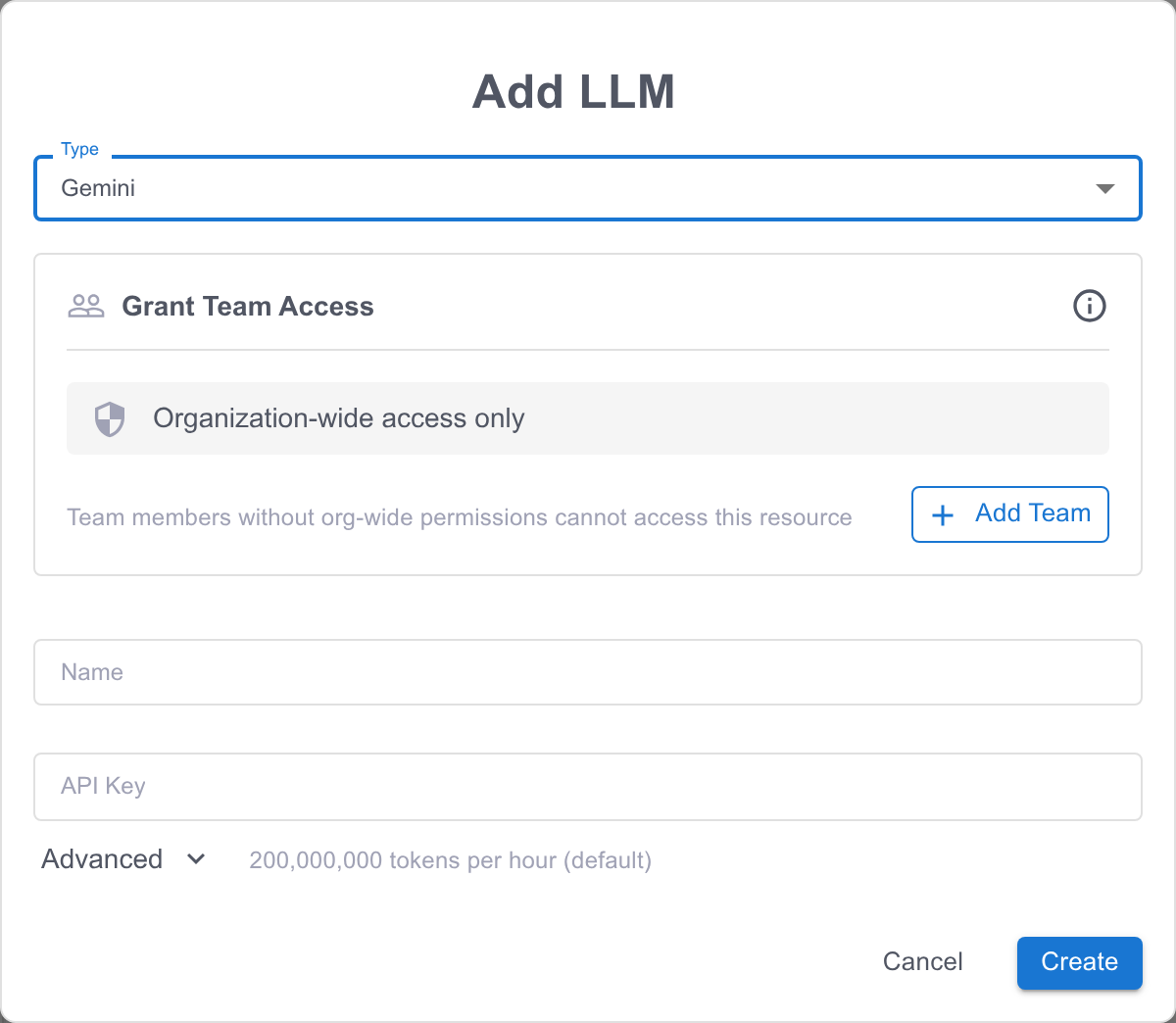
Select the tab for your provider to see the fields it requires:
Anthropic
| Field | Description |
|---|---|
| Name | A name for the integration, used to identify it when you configure an agent. |
| API Key | Your Anthropic API key. |
| Max tokens per window | Under Advanced. The total tokens, counting input, cached input, and output tokens, that agent investigations using this integration can consume in each window. Leave empty for the default of 200,000,000. This is a safety net, not a spending cap: for firmer cost control, set a spend limit with your provider, on the project or workspace the API key belongs to or on the LiteLLM virtual key. |
| Max tokens window (hours) | Under Advanced. How often the token count starts over. Windows align to UTC and must divide 24 (1, 2, 3, 4, 6, 8, 12, or 24). Leave empty for the default of 1 hour. |
An Anthropic integration serves as an agent’s model. Anthropic does not supply embeddings, so an agent with memory turned on also needs a Gemini or OpenAI integration for its embedding model.
Cap token consumption with a budget window
An integration that serves an agent’s model carries a token budget, which is what caps the spend of every agent sharing it. The budget has two settings:
- Max tokens per window is the total tokens every agent sharing the integration can consume in one window.
- Max tokens window (hours) is the length of that window. The value must divide 24 evenly, so the valid lengths are 1, 2, 3, 4, 6, 8, 12, and 24 hours. Windows are aligned to UTC.
Before it starts an investigation, Grepr reserves the tokens that investigation is allowed to consume and checks the reservation against two budgets: the integration’s budget, and the agent’s per-window budget. Both must have room. An agent whose own budget is untouched still waits when the shared integration has none left, so when investigations stop starting, check which of the two is exhausted on the agent’s page before you raise a limit. To learn more about the agent-level settings, see Set an agent’s limits.
Update an API key
To replace a key, click the three-dot menu on the integration card, select Edit, enter the new key, and click Save. Every agent using the integration picks up the new key automatically.
Grant team access
When you have teams in your Grepr organization, you can grant access to the integration to one or more of those teams. To configure team access when you create or edit an integration:
-
In the Grant Team Access section, click the plus sign icon (+).
-
Select the team or teams that should be granted access to the integration.
-
Click Create.
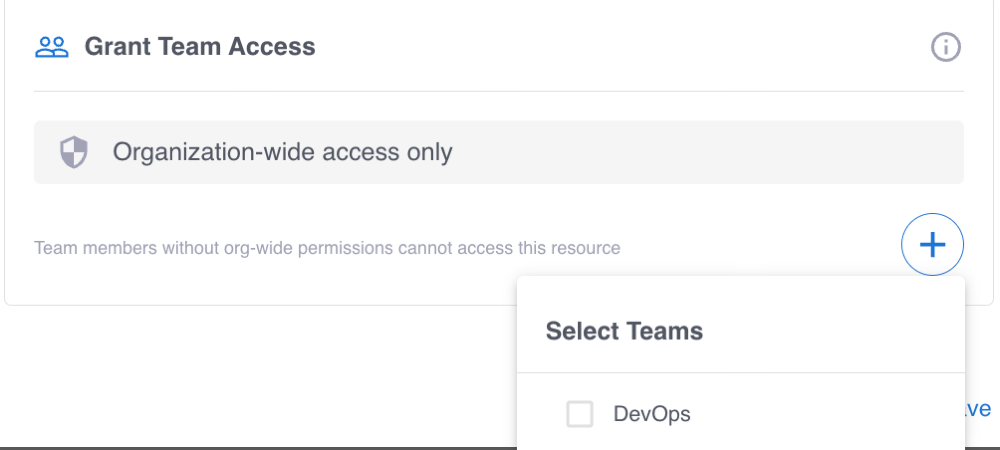
To learn more, see Manage teams in the Grepr platform and Permissions in the Grepr platform.
View token usage
Each LLM integration card on the Integrations page charts the tokens its agents consumed, broken down by token type, and shows how much of the budget window remains. The card totals every agent sharing the integration and lists which agents those are, so to see how much one agent is spending, open that agent’s page.