Configure the metrics reducer
Metrics pipelines are in a closed beta. To request access, contact support@grepr.ai.
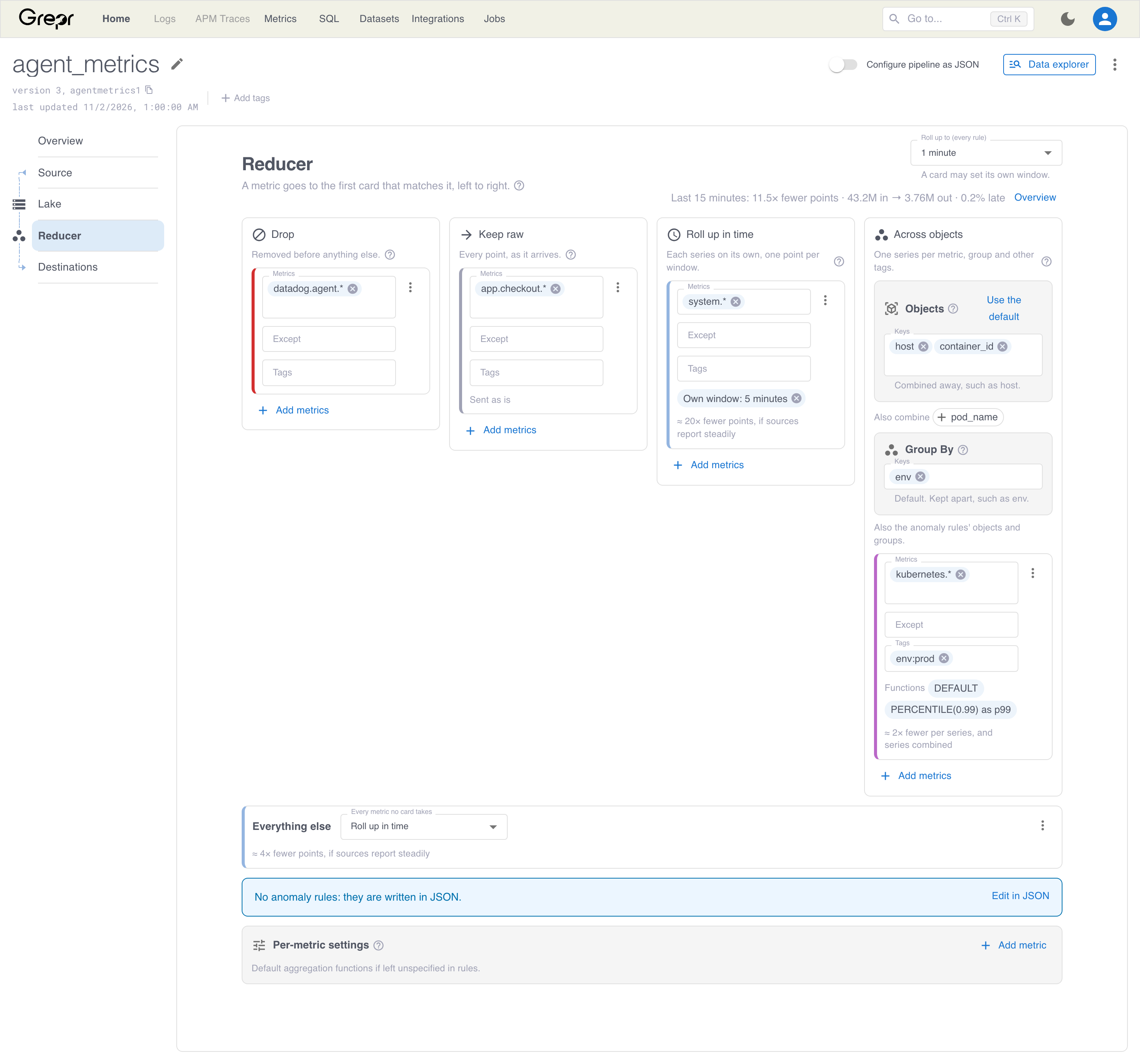
The reducer of a metrics pipeline decides what the pipeline sends for each metric. You configure it on the pipeline’s Reducer step, which shows the reducer as a board. Each column of the board is one outcome, and each card in a column names the metrics that get that outcome:
- Drop removes the metrics. The pipeline doesn’t send them.
- Keep raw sends every point as it arrives, with each series’ own tags.
- Roll up in time keeps each series on its own and sends one point per series per window.
- Across objects combines the series of many objects, such as hosts or containers, into one series per group, such as one series per environment, and sends one point per window.
- Everything else, below the columns, is what happens to every metric that no card takes.
How the reducer chooses a card
A metric goes to the first card that matches it, reading the columns from left to right and the cards in each column from top to bottom: Drop, then Keep raw, then Roll up in time, then Across objects, then Everything else. The order of the columns is fixed.
To make an exception to a card, put the exception in an earlier column, or add the metrics it leaves out to the card’s Except field. For example:
| To | Add |
|---|---|
| Keep specific metrics raw and roll up the rest | A Keep raw card with the metrics, and Everything else set to Roll up in time |
| Drop a metric family except one subfamily | A Drop card with kubernetes.* and kubernetes.pods.* under Except |
| Keep per-host detail for a subfamily of an across-objects family | A Roll up in time card with kubernetes.node.*, and an Across objects card with kubernetes.* |
| Combine a subfamily across objects within a per-host family | A Roll up in time card with kubernetes.* and kubernetes.pods.* under Except, and an Across objects card with kubernetes.pods.* |
A card whose Metrics field holds only *, r/.*, or r/.+, with no Except and no Tags, takes every metric. When such a card is in the Drop, Keep raw, or Roll up in time column, nothing after it applies, so you can’t add cards to its column or a later one, or change Everything else. An Across objects card that takes every metric still leaves the series that are missing an Objects tag to Everything else.
To add a card, click Add metrics in its column. To reorder a card, move it to another column, or delete it, use the card’s menu.
Choose the metrics a card takes
A card takes a series when the series matches every field that the card sets:
- Metrics lists the metric names the card takes.
- Except lists the metric names the card leaves out, even when Metrics matches them.
- Tags lists
key:valueconditions, such asenv:prod. A series must match every condition. A condition reads the series’ own tag, and then its host tag. To learn more about host tags, see How a metrics pipeline reduces metrics.
A card must set at least one of these fields. To take every metric, enter * in Metrics.
A metric name or a tag value can be a glob or a regular expression:
- A glob matches the whole name or value, and
*matches any characters, such askubernetes.*or*.count. - A pattern that starts with
r/is an RE2 regular expression that matches the whole name or value. For example,r/app\.(web|api)\..+takesapp.web.requestsandapp.api.requests, but notapp.db.queries. To match a value that starts withr/, such asr/abc, write it as the regular expressionr/r/abc.
A tag key in Tags can’t be a regular expression.
Drop metrics
A metric that a Drop card takes isn’t sent to your destinations. The Drop column comes before every other card, so a metric that a Drop card takes never reaches a later card.
If the pipeline has a lake, the lake still keeps the points of dropped metrics, because the lake stores each point before the reducer.
Keep metrics raw
A metric that a Keep raw card takes is sent as it arrives, one time, with each series’ own tags. A Keep raw card comes before the rollup columns, so use it to make an exception to a rollup.
Roll up metrics in time
A metric that a Roll up in time card takes keeps each series on its own, and the reducer sends one point per series per window. By default, the point is the sum of the window’s points for a count, the average for a rate, and the latest value for a gauge. A distribution’s points merge into one distribution per window. To send other values of a count, rate, or gauge, see Choose a card’s functions.
A time rollup also takes a series that is missing an Objects tag, and rolls it up as itself.
Combine metrics across objects
A metric that an Across objects card takes is combined across objects, such as hosts or containers, within each group, such as each environment. Series that differ only in their Objects tags become one series, and the reducer sends one point per window for it. Series that differ in another of their own tags, or in a host tag listed in the source’s Identifying keys, stay separate. Other host tags don’t keep series apart: the combined series carries such a tag only when every series combined in the window has the same value for it when the reducer first sends the window. A re-sent window keeps the tags of its first send.
The Across objects column’s settings apply to every card in the column:
- Objects lists the tag keys that identify one object, such as
hostorcontainer_id. The default ishost. A series must have every Objects tag to be combined, so each key you add narrows what the column takes. For example, withhostandcontainer_id, the column combines the series of containers, and host-level series, which have nocontainer_idtag, go on to the next card or to Everything else. Below the field, the column suggests common keys of your source’s vendor. - Group By lists the tag keys whose values the reducer keeps apart, such as
env. The default isenv. With no keys, every object is in one group. A key can’t be both an Objects key and a Group By key.
The reducer first rolls up each object’s series over the window, with the metric’s default function over time, and then combines the objects of a group. By default, it combines them with the sum for a count and the average for a rate or a gauge, and it merges the distributions of a distribution metric. A card’s functions choose how the reducer combines the objects’ counts, rates, and gauges. To send other values, see Choose a card’s functions.
Each combined series reaches your destinations with each Objects tag set to the group’s name, and carries the group’s name as its grepr.cohort tag. The group’s name is cohort_ followed by the group’s tags and a 6-character hash of them, such as cohort_env-prod_<hash>, so with the default settings a combined series has a tag such as host:cohort_env-prod_<hash>. The hash tells apart groups whose tags read alike, and a long name is shortened before its hash. When Group By has no keys, the name is cohort-default, and for series that have none of the Group By tags, the name is cohort. For how a vendor’s destination shows the combined series, see the vendor’s section of Supported sources and destinations.
An Across objects card takes only the series that have every Objects tag. A series that is missing one, such as a series with no container_id tag when container_id is an Objects key, goes on to the next card that matches it, or to Everything else.
A window shorter than your agents’ report interval holds only the objects that reported during it. For Across objects cards, use a window at least as long as the report interval, or a combined value can change from one window to the next as objects report. For the report interval of a vendor’s agents, see the vendor’s section of Supported sources and destinations.
Choose what happens to everything else
Everything else handles every metric that no card takes, including the series that an Across objects card can’t take because they’re missing an Objects tag. Select one of the following:
- Roll up in time rolls up each series over the window, as a Roll up in time card does. A new pipeline starts with this setting.
- Pass through sends the metrics as they arrive.
Set the window
The window is the time that each rolled-up point covers. To set the window for every card, select it in Roll up to (every rule), from 1 second to 10 minutes. A new pipeline starts with 1 minute, and Default is 20 seconds.
To give one rollup card its own window, click Own window… in the card’s menu. The card shows its own window as a chip. To return the card to the window of every card, delete the chip.
With the API, a window must divide an hour evenly, and each destination must still send the window’s last re-send, which comes up to three windows plus 5 minutes after the window starts. A window longer than a destination’s limit allows needs the destination’s maxLateData raised to at least three windows plus 5 minutes. See Configure a metrics pipeline with the API or Terraform. For a vendor’s default limit, and what raising it needs, see the vendor’s section of Supported sources and destinations.
Choose a card’s functions
By default, a rollup card sends one point per window, using each metric’s default function. To send other values of a count, rate, or gauge, or more than one value, click Functions… in the card’s menu and add a function for each value to send:
- Function is Default, Sum, Average, Latest, Max, Min, or Percentile. Default is the metric’s per-metric function, if you set one, and otherwise its type’s default. Percentile takes a Rank from 0 to 1, such as
0.99. - Suffix names the function’s output metric: the metric’s name, a dot, and the suffix, such as
system.cpu.user.p99for the suffixp99. At most one function of a card can have no suffix, and that function’s output keeps the metric’s name. Each suffix of a card is distinct.
Each function sends its own series. A Roll up in time card with three functions sends three points per window for each series it takes, and an Across objects card with three functions sends three points per window for each combined series.
A card’s functions apply to counts, rates, and gauges. A distribution metric goes out merged under its own name, whatever the card’s functions. For how a vendor’s distributions merge, see the vendor’s section of Supported sources and destinations.
On an Across objects card, the functions choose how the reducer combines a group’s objects. Each object’s series is first rolled up over the window with the metric’s default function over time, so a Max of a gauge is the maximum of the objects’ latest values in the window.
Set a metric’s default functions
To change the default function of one count, rate, or gauge metric for every card, under Per-metric settings, click Add metric, enter the exact Metric name, and select the functions:
- Over time is the function that rolls up the metric’s points in a window: Sum, Average, Latest, Min, or Max.
- Across objects is the function that combines the objects of a group: Sum, Average, Latest, Min, or Max.
A Roll up in time card uses the Over time function where its function is Default, and a function that the card names takes precedence. An Across objects card always rolls up each object’s series with the Over time function, and it uses the Across objects function where its function is Default.
Check the expected reduction
Each rollup card shows an estimate of its reduction, such as ”≈ 4× fewer points, if sources report steadily”. The estimate is the card’s window divided by the report interval of the source’s agents, at least 1, divided by the number of functions the card sends. An Across objects card’s estimate is per series, before the series it combines.
When the board shows a live time range and has no unsaved changes, a Keep raw or rollup card, or Everything else, shows No series matched yet when no series has reached it since its configuration took effect. Check that your agents send the metrics the card names, that the series match the card’s Tags, and, for an Across objects card, that the series have every Objects tag. An earlier card might also take the metrics. To give them to the later card, add them to the earlier card’s Except field.
The top of the step shows the measured reduction over the page’s time range: the points in and out, how many times fewer points the pipeline sends, and the share of late points. To open the pipeline’s Overview step, click Overview. See Monitor a metrics pipeline.
Edit the reducer in JSON
To edit the reducer’s settings as JSON, click Edit in JSON below the board. To learn about the fields, see Configure a metrics pipeline with the API or Terraform.
The board shows rules in its column order only: Keep raw, then Roll up in time, then Across objects. When rules written in JSON are in another order, the step doesn’t show the board, and you edit the rules in JSON.